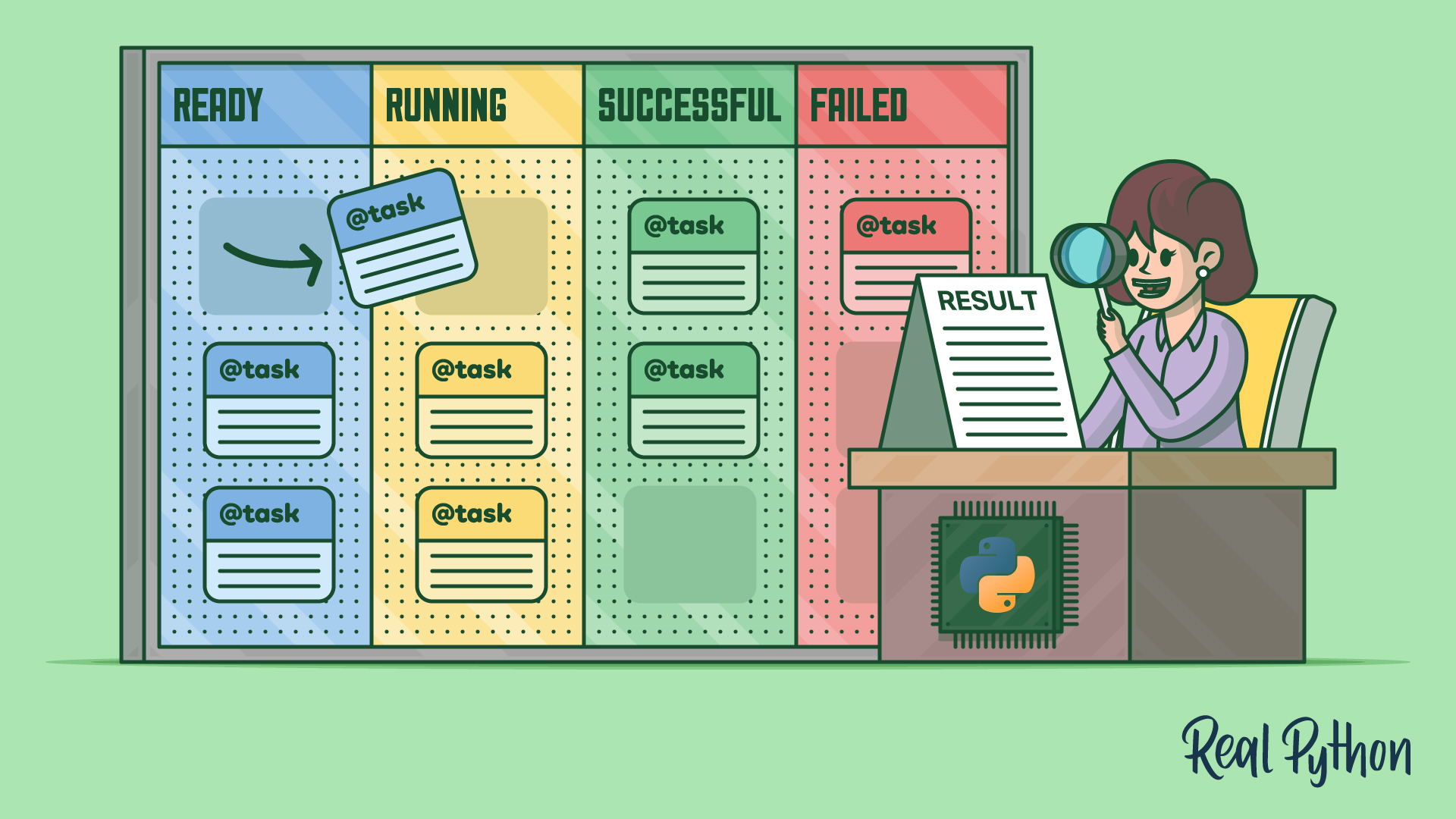
Most Django apps eventually need to defer slow work outside the request-response cycle. Django Tasks, the new built-in framework in Django 6.0, gives you a standard way to push that work onto a background worker instead of a view function that keeps a user’s browser waiting. Common examples of such work include sending welcome emails, processing image uploads, and generating monthly reports.
Before Django Tasks, you’d reach for Celery, RQ, or Django Q, each with its own API, broker setup, and learning curve. The new framework standardizes the workflow. You define a task with a decorator, enqueue it, and check on it later, all through django.tasks. That single entry point is what’s new, not a full Celery replacement. For production, you still install a third-party backend such as django-tasks-db and run a separate worker.
In this tutorial, you’ll get hands-on with Django Tasks. You’ll write your first background task with the @task decorator, run it on a database-backed worker using the third-party django-tasks-db package, and decide whether the framework fits your project. You’ll also see when you should still pick Celery instead.
You’ll get the most out of this tutorial if you’re comfortable with the basics of building a Django project, working with virtual environments, and using pip to install third-party packages. The code targets Django version 6.0 or later and Python 3.12 or later.
The Tasks API is backend-agnostic, so the first practical question is which backend to start with, not which queue tool to commit to. The following table maps each use case to a starting backend:
| Use Case | django-tasks-db |
Celery or a heavier backend |
|---|---|---|
| Lightweight background jobs without an external broker | ✅ | — |
| Complex workflows or high-throughput pipelines | — | ✅ |
You can start with django-tasks-db and swap backends later as your needs grow, without rewriting any task code. The upstream CeleryTaskBackend proposal would eventually let you keep your @task code while running it on Celery infrastructure. If your project already lives in the heavy-workflow tier, the existing Celery tutorial is the better fit today. Otherwise, you’ll finish this tutorial with a working pattern you can drop into your own project.
Get Your Code: Click here to download the free sample code you’ll use to run background jobs with Django’s built-in Tasks framework, from a welcome-email task to named queues.
Start Using Django Tasks
Before pulling in any third-party package, you can try the Tasks API end-to-end with what ships in the framework itself. Django 6.0 includes two task backends out of the box: ImmediateBackend and DummyBackend. Both exist for development and testing. ImmediateBackend runs each task in the calling thread the moment you call .enqueue(), so it lets you define tasks and confirm they work without spinning up a worker.
Set up a virtual environment and install Django before scaffolding the project:
$ python -m venv venv
$ source venv/bin/activate
(venv) $ python -m pip install "django>=6.0,<7.0"
The first command creates a fresh virtual environment in a venv/ folder, and the second activates it. From this point on, every shell command in the tutorial assumes you’re inside the active venv, which is why each prompt is prefixed with (venv) $.
If you already have a Django version 6.0 project handy, you can extend it here. Otherwise, follow the Django setup guide to scaffold one with config/ and myapp/ directories. Then add the following to your settings module:
config/settings.py
# ...

TASKS = {
    "default": {
        "BACKEND": "django.tasks.backends.immediate.ImmediateBackend",
    }
}

# ...
That single setting tells Django to dispatch every enqueued task through ImmediateBackend, which runs tasks inline in the current thread.
You’ll work with a small project throughout this tutorial. After django-admin startproject config . and python -m manage startapp myapp, you’ll have a standard layout: a config/ settings module that holds settings.py and urls.py, plus a myapp/ app for your code.
Beyond that layout, you’ll add a few files by hand. Inside myapp/, you’ll create tasks.py for the task definitions and urls.py to route the demo views you’ll build, and at the project root you’ll add a requirements.txt to pin dependencies. Make sure "myapp" appears in INSTALLED_APPS in config/settings.py so that Django picks up the tasks you define inside it.
startapp doesn’t create a tasks module for you, so create a new myapp/tasks.py file. By convention, the framework looks for a tasks module in each installed app:
myapp/tasks.py
from django.tasks import task

@task
def say_hello(name):
    return f"Hello, {name}!"
The @task decorator wraps say_hello() in a Task object, which exposes .enqueue() and related methods for sending the function to a worker.
Now open the Django shell, which gives you a Python REPL with your project’s settings preloaded:
(venv) $ python -m manage shell
Inside the shell, enqueue the function:
>>> from myapp.tasks import say_hello
>>> result = say_hello.enqueue("Real Python")
Task id=D32SVJEMf0fbRXS0yLp8vbfP9HSqs9zd path=myapp.tasks.say_hello
⮑ state=RUNNING
Task id=D32SVJEMf0fbRXS0yLp8vbfP9HSqs9zd path=myapp.tasks.say_hello
⮑ state=SUCCESSFUL
>>> result.status
TaskResultStatus.SUCCESSFUL
>>> result.return_value
'Hello, Real Python!'